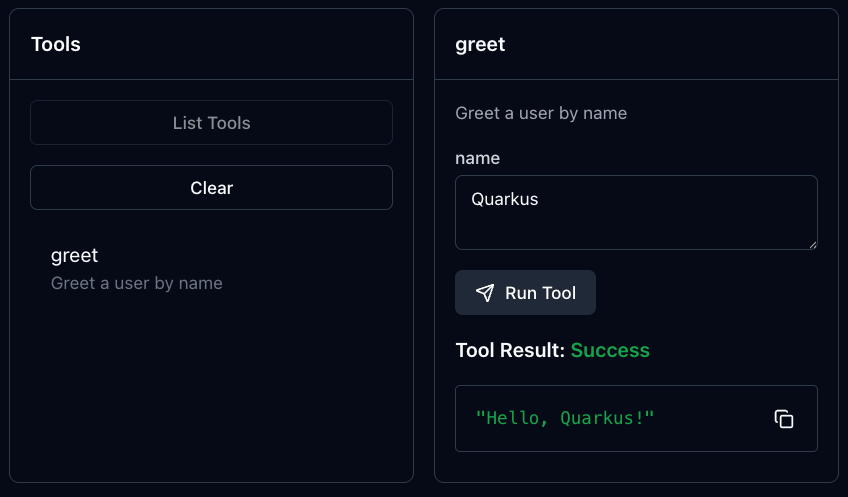
Development Tools
This guide covers the development tools available for building, testing, and debugging MCP servers during development.
Overview
The Quarkus MCP Server extension provides several tools to help you develop and test your MCP server:
-
Traffic Logging: Monitor JSON-RPC messages exchanged between client and server
-
Dev UI: Test your tools, resources, and prompts directly from the browser during development
-
MCP Inspector: External testing tool for comprehensive protocol testing
Traffic Logging
Traffic logging allows you to monitor all JSON-RPC messages sent and received by your MCP server. This is useful for debugging communication issues, understanding the protocol flow, and verifying request/response formats.
Enabling Traffic Logging
Enable traffic logging in your application.properties:
# Enable traffic logging
quarkus.mcp.server.traffic-logging.enabled=true

# Limit the number of characters logged per message (optional)
quarkus.mcp.server.traffic-logging.text-limit=1000| Disable traffic logging in production environments as it can significantly impact performance and may expose sensitive data in logs. |
Configuration Options
| Property | Description | Default |
|---|---|---|
|
Enable or disable traffic logging |
|
|
Maximum number of characters to log per text message |
|
Per-Server Traffic Logging
When using multiple servers, you can enable traffic logging for specific servers:
# Enable logging for the admin server only
quarkus.mcp.server.admin.traffic-logging.enabled=true
quarkus.mcp.server.admin.traffic-logging.text-limit=500

# Default server: no logging
quarkus.mcp.server.traffic-logging.enabled=false
Log Output
When enabled, traffic logging outputs JSON-RPC messages to the application logs:
2024-01-15 10:23:45 INFO  [io.qua.mcp.ser.traffic] MCP message received [abc123]:

{
  "jsonrpc": "2.0",
  "method": "tools/call",
  "params": {
    "name": "greet",
    "arguments": {
      "name": "Alice"
    }
  },
  "id": 1
}

2024-01-15 10:23:45 INFO  [io.qua.mcp.ser.traffic] MCP message sent [abc123]:

{
  "jsonrpc": "2.0",
  "result": {
    "content": [
      {
        "type": "text",
        "text": "Hello, Alice!"
      }
    ]
  },
  "id": 1
}
Custom Traffic Listeners
You can implement the io.quarkiverse.mcp.server.McpTrafficListener interface to receive notifications when MCP messages are sent or received.
Unlike the built-in traffic logging, custom listeners are always invoked regardless of the traffic-logging.enabled configuration property.
import io.quarkiverse.mcp.server.McpTrafficListener;
import io.quarkiverse.mcp.server.McpConnection;
import io.quarkiverse.mcp.server.RawMessage;

public class MyTrafficListener implements McpTrafficListener { (1)

    @Override
    public void onMessageReceived(RawMessage message, McpConnection connection) { (2)
        // message.method() returns the JSON-RPC method name, or null for responses
        // message.id() returns the request id (RequestId), or null for notifications
        if (message.id() != null) {
            Log.infof("Request [%s] received [%s]: %s", message.method(), connection.id(), message.asString());
        }
    }

    @Override
    public void onMessageSent(RawMessage message, McpConnection connection) {
    }
}| 1 | A CDI bean scope is added automatically. |
| 2 | Listener methods should be fast and non-blocking. If a listener throws an unchecked exception, it is logged and the next listener is invoked. |
Dev UI
The Quarkus Dev UI provides a web-based interface for testing your MCP server during development. It’s automatically available when running in dev mode.
Accessing Dev UI
Start your application in dev mode:
./mvnw quarkus:devOpen your web browser and navigate to:
http://localhost:8080/q/dev-uiTesting Tools
The Dev UI allows you to test your MCP tools interactively:
-
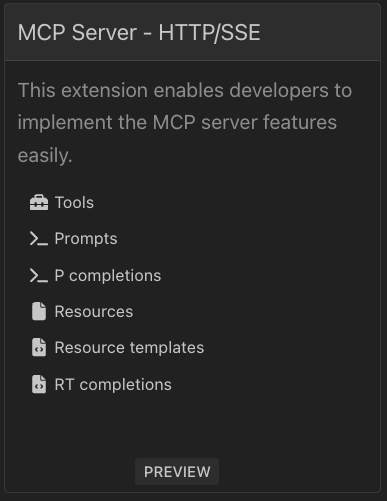
In the Dev UI, locate the "MCP Server - HTTP/SSE" card
-
Click "Tools" to see all registered tools
-
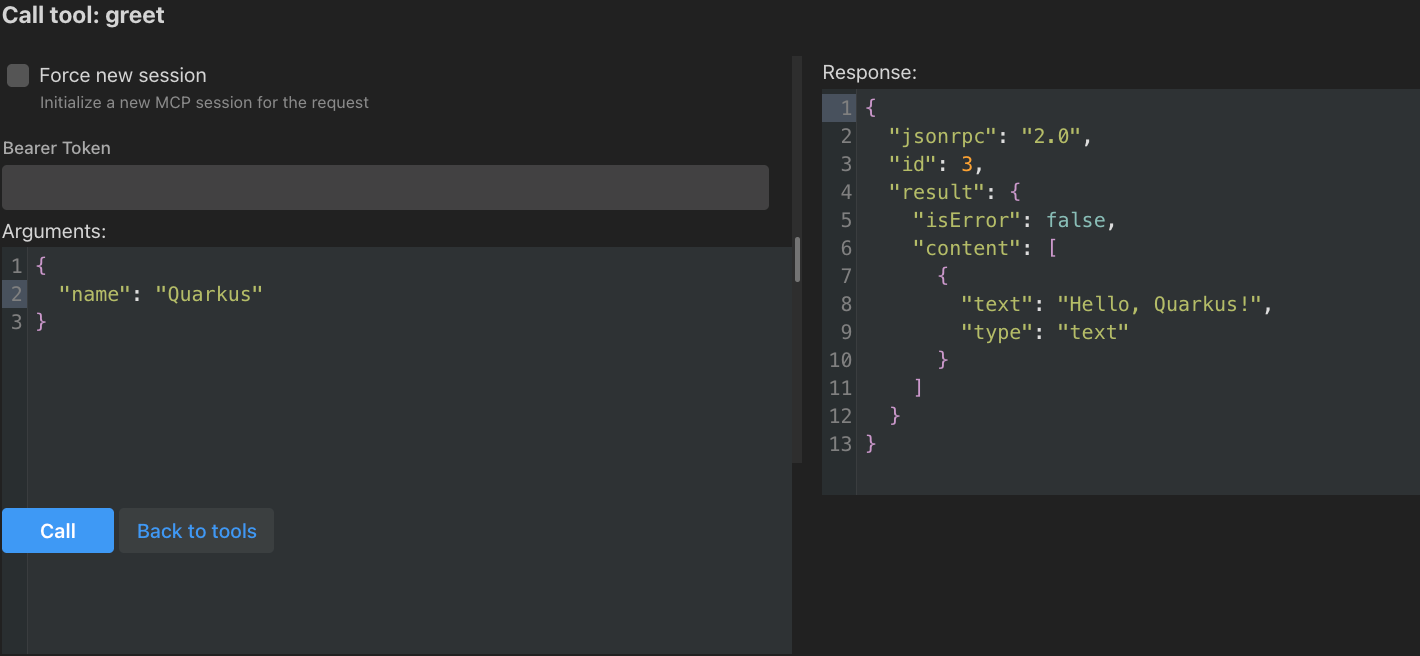
Click the "Call" button next to any tool
-
Enter the required arguments in the form
-
Click "Call" to invoke the tool and see the response
Features
The Dev UI allows:
-
Viewing all registered tools with their descriptions and input schemas
-
Calling tools with custom arguments and see responses immediately
-
Checking input forms are generated from tool schemas (schema validation)
-
Seeing tool execution results and errors
Limitations
The Dev UI is only available for HTTP-based transports (SSE, Streamable HTTP, and WebSocket). STDIO transport servers cannot use the Dev UI and should use MCP Inspector instead.
Dev UI is automatically disabled in production builds.
It’s only available when running with quarkus:dev or when quarkus.dev-mode.enabled=true.
|
MCP Inspector
The MCP Inspector is an external tool provided by Anthropic for comprehensive MCP server testing. It supports all transport types and provides a full-featured client interface.
Starting MCP Inspector
Run the MCP Inspector:
npx @modelcontextprotocol/inspectorOpen the MCP Inspector in your browser using the link with the token shown in the console (typically http://localhost:5173/?token=<random-token>;).
Testing HTTP Transport
To test an MCP server using Streamable HTTP transport:
-
1. Start your Quarkus application in dev mode:
./mvnw quarkus:dev -
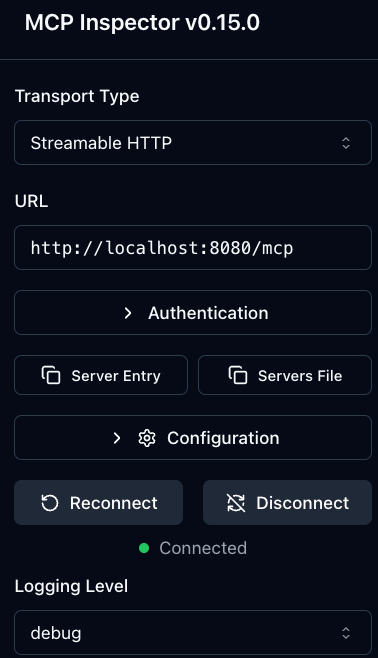
2. In the MCP Inspector, configure the server connection:
-
Transport: Select "Streamable HTTP"
-
URL: Enter
http://localhost:8080/mcp
-
3. Click "Connect" to establish the connection
-
4. Use the Inspector to:
-
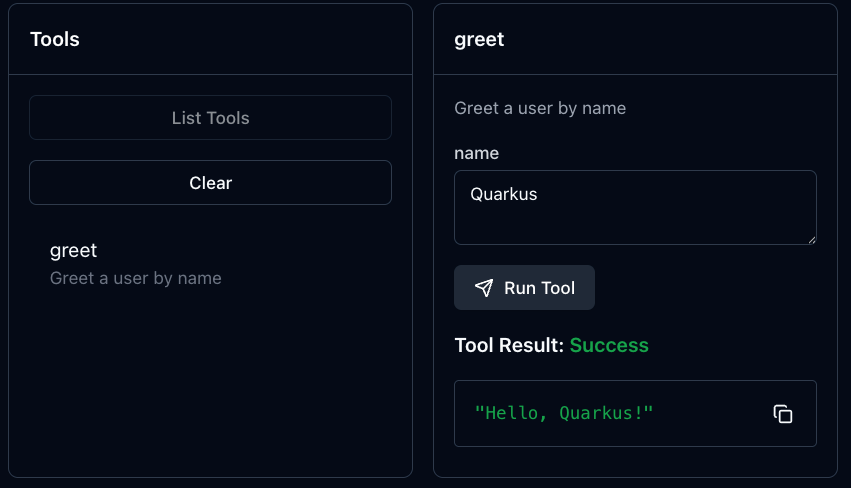
List and invoke tools
-
Browse and read resources
-
Get and test prompts
-
Monitor protocol messages
Testing STDIO Transport
To test an MCP server using STDIO transport:
-
1. Build your native executable:
./mvnw package -Dnative -
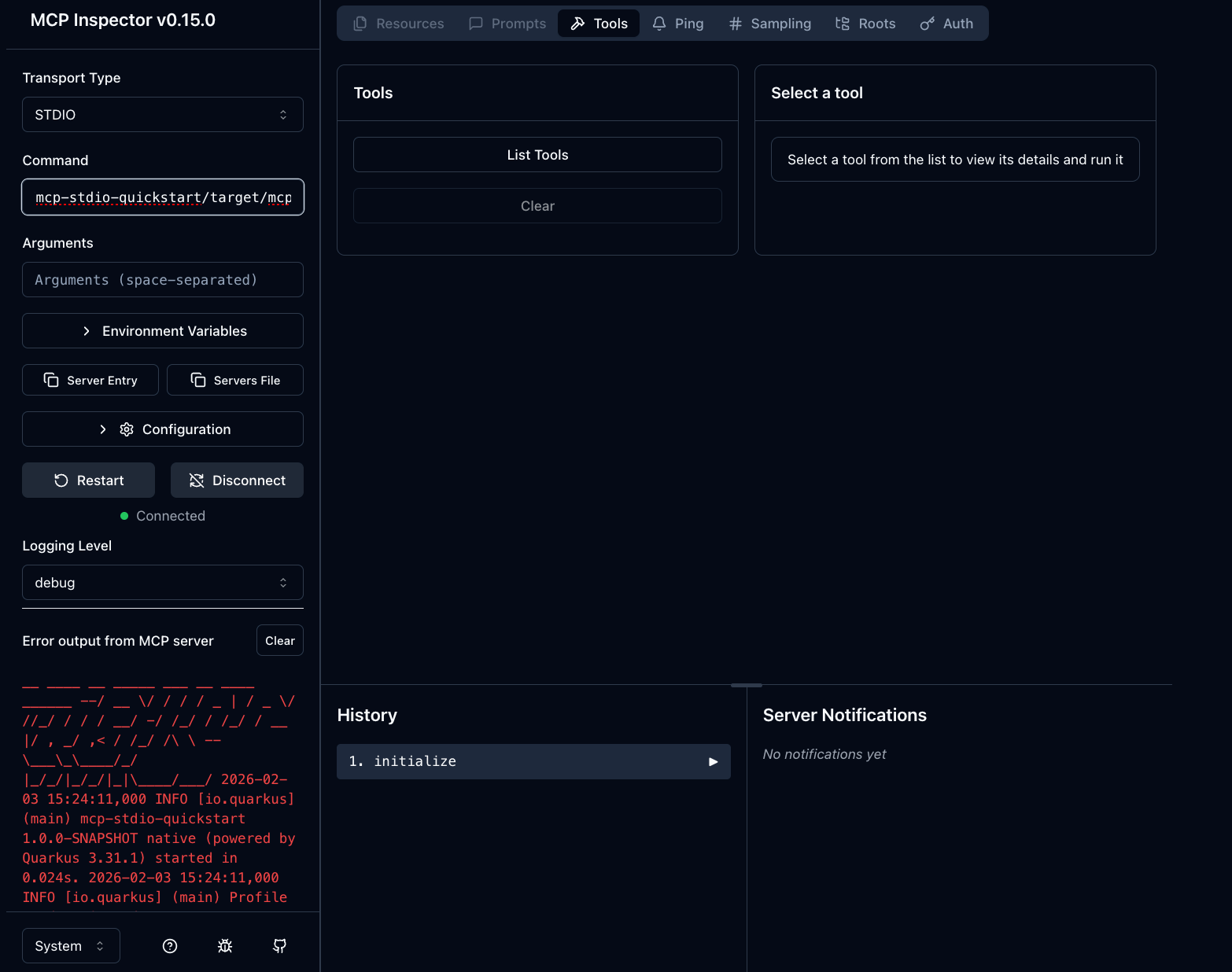
2. In the MCP Inspector, configure the server connection:
-
Transport: Select "STDIO"
-
Command: Enter the absolute path to your native executable
For example:
/Users/username/projects/mcp-server/target/mcp-server-1.0.0-runner
-
3. Click "Connect" to start the server process
-
4. Test your tools, resources, and prompts through the Inspector interface