Getting Started with STDIO Transport
This tutorial guides you through creating your first MCP server using the STDIO transport. It uses Quarkus native compilation to create an MCP server that runs as a native executable with fast startup times.
What You’ll Build
You’ll create a simple MCP server that:
-
Exposes a tool to greet users
-
Runs as a native executable
-
Communicates via STDIO transport
Creating the Project
Create a new Quarkus project with the MCP STDIO extension:
mvn io.quarkus:quarkus-maven-plugin:3.40.1:create \
    -DprojectGroupId=org.acme \
    -DprojectArtifactId=mcp-stdio-quickstart \
    -Dextensions="io.quarkiverse.mcp:quarkus-mcp-server-stdio:2.0.0"
cd mcp-stdio-quickstart
Creating Your First Tool
Create a simple greeting tool:
package org.acme;

import io.quarkiverse.mcp.server.Tool;

public class GreetingTools {

    @Tool(description = "Greet a user by name")
    public String greet(String name) {
        return "Hello, " + name + "!";
    }
}
That’s it! The @Tool annotation automatically registers this method as an MCP tool.
Building a Native Executable
Build a native executable for optimal performance:
mvn package -DnativeThe native executable will be created in the target directory.
Testing Your MCP Server with the MCP Inspector
The MCP Inspector is a handy tool for testing MCP servers. Follow the instructions from MCP Inspector to download and run it.
Open the MCP Inspector in your browser (use the link with the token shown in the console) and configure it to connect to your native executable using STDIO transport.
In the server configuration, set the command to the absolute path of your native executable (e.g., /path/to/mcp-stdio-quickstart/target/mcp-stdio-quickstart-1.0.0-runner).
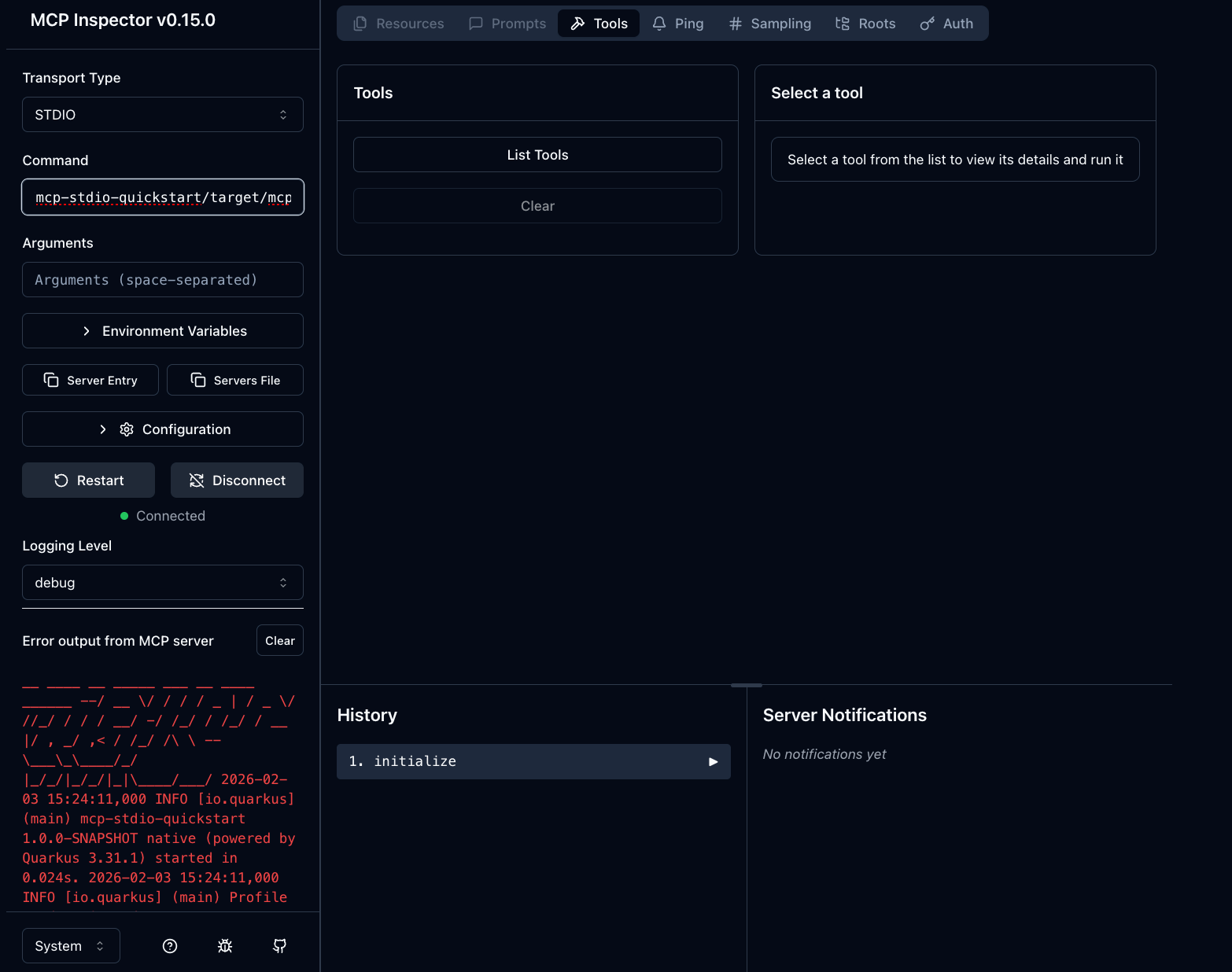
Once connected, you can list the tools exposed by the server and invoke the greet tool:
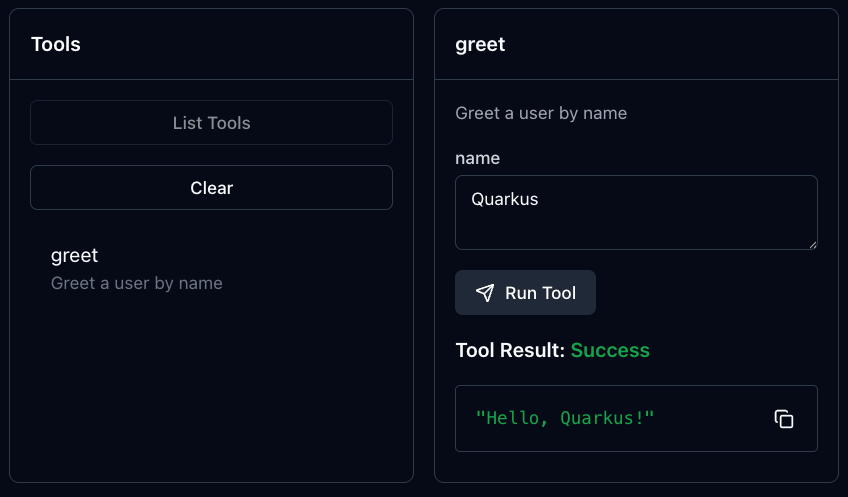
Congratulations! You’ve successfully invoked your first MCP tool! You can now extend your server by adding more tools, prompts, and resources, and connect it to any MCP-compatible client (like Claude or Cursor).